Editing Elements
This page explains how to add effects to elements, move them, and more.
Prerequisite Knowledge
This page uses the term Drawing Object. For details, please refer to here.
Adding Effects
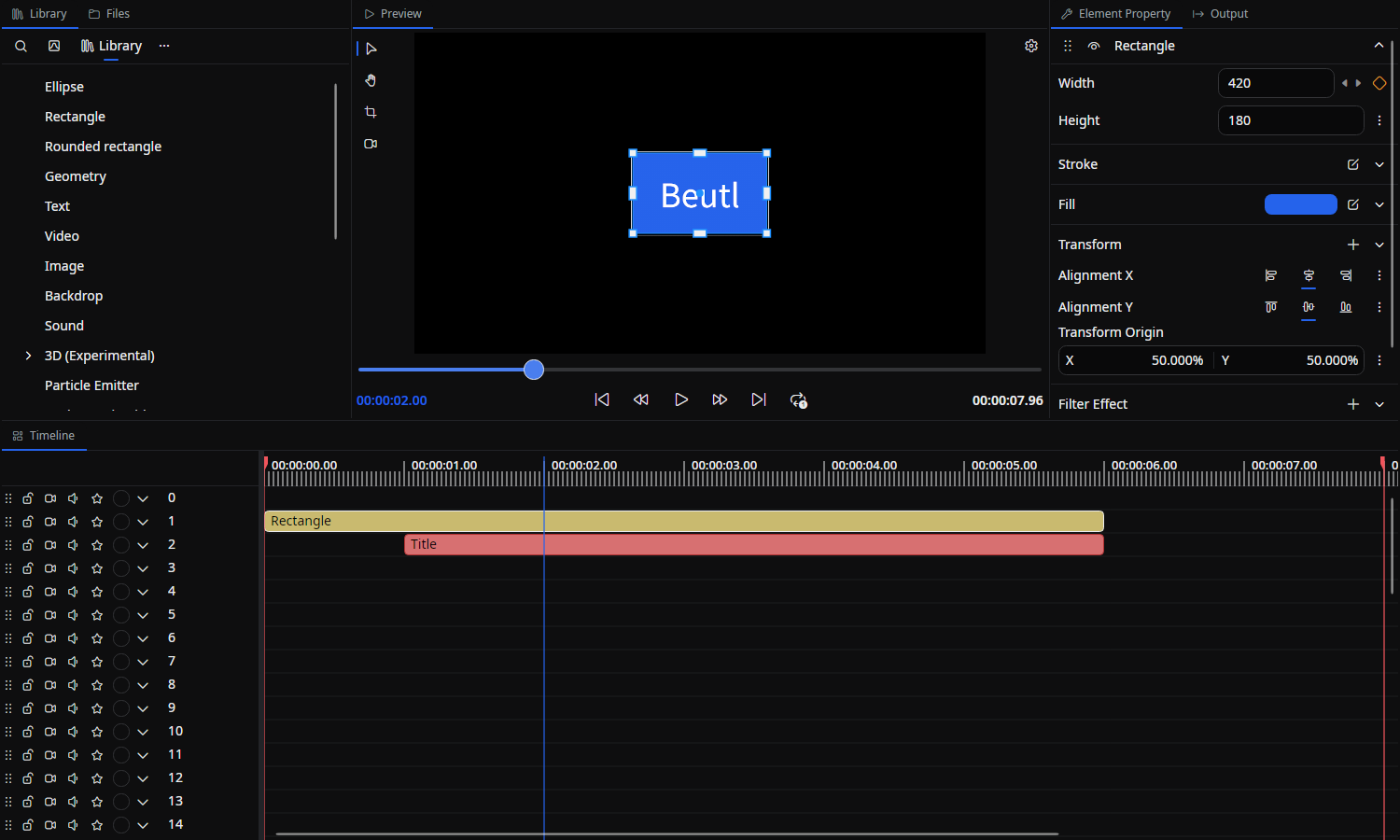
First, select the element you want to add on the timeline. The properties of the selected element will be displayed in the property editor on the right.
To add an effect directly to a drawing object,
click the + button in Filter Effects and select the effect you want to add.
Alternatively, you can drag and drop the effect you want to add from the library to Filter Effects.
Transform
Using transform, you can express movement, rotation, scaling, distortion, and more.
To set a transform directly on a drawing object,
click the + button in Transform and select the type of transform you want to add.
Editing transforms on the preview
While the preview's Move tool is active and playback is stopped, Beutl shows transform handles around the selected object so you can edit it directly on screen:
- Drag the center to change its position (adds/updates a
Translatetransform). - Drag a corner or edge handle to scale it (adds/updates a
Scaletransform). - Drag the rotation handle just outside a corner to rotate it (adds/updates a
Rotationtransform).
Dragging a handle adds the corresponding transform to the object if it does not have one yet. Transforms added inside a filter effect cannot be edited from the preview.
Choosing reference targets
Properties that refer to an existing scene, drawable, effect, transform, or brush show a target picker. Click the target field and choose a compatible object from the list. Scene references list other scenes in the project; object references list compatible targets in the current scene. Targets that would create a circular reference are excluded.
The field shows the target's name. To clear the reference, open its three-dot menu and select Null. Choosing a target links to the existing object; it does not create a copy of it.
Property units and time fields
Where a property declares a unit, its label includes (%) for percentages, (°) for degrees, or (×) for ratios. These units also appear in node-port editors. For example, 2D scale uses percentages, while 3D scale uses ratios.
Time properties continue to display and accept time text such as 00:00:01.500. Although preview.9 stores media time as integer flick counts, you do not enter flick counts in these time fields.
Editing Element Time
By dragging with the mouse on the timeline, you can edit the start time and duration of elements.
To make editing easier in Beutl, elements snap to the time of other layers during drag operations.
Toggle Snap in the timeline's empty-area right-click menu to turn snapping on or off. While resizing an element's edge, hold Alt to disable snapping temporarily. Holding Alt while dragging the element's body duplicates it.
Splitting Elements
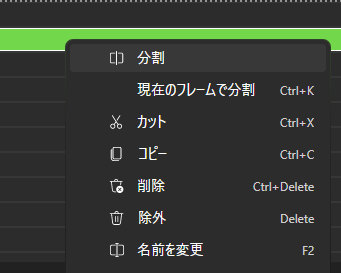
Right-click the element you want to split on the timeline and click the split button in the menu to split the element.
You can also use Ctrl + K (Cmd + K on macOS) to split the selected element at the current frame.
Renaming Elements
In Beutl, you can change the color and name of elements, both of which can be changed from the right-click menu.
You can change the name with F2 (Enter on macOS) or by double-clicking the element's body. Double-clicking a transition or a shared clip boundary performs a transition operation.
Relinking missing media
If a source file has moved or is missing, choose Open repair tool from the missing-media notification. The Relink missing media tab lets you select replacement files, review candidates for other missing files, and apply the repairs.
Recovering damaged elements
If an element's data is damaged or a required extension is missing, the parts that cannot be loaded appear as placeholder elements or objects. When Beutl can preserve the unrecognized data, the element remains editable and that data is kept when saving. Supported common properties on a placeholder can also be edited when the placeholder can save them.
If saving would lose part of the loaded data, Beutl protects the original element file and makes the element read-only, except for removing or replacing the content that could not be loaded. Restore the required extension or damaged file and reopen the project, or repair that content. You can continue editing the rest of the scene.