Publishing Extensions
This guide explains how to publish Beutl extensions to the store.
In this guide, the C# project name is YOUR_PROJECT.
Creating a NuGet Package
Run the following command in the directory where YOUR_PROJECT.csproj is located:
dotnet pack -c Release
This will generate a YOUR_PROJECT.1.0.0.nupkg file as shown below:
YOUR_PROJECT
┣━ YOUR_PROJECT.csproj
┗━ bin
    ┗━ Release
        ┗━ YOUR_PROJECT.1.0.0.nupkg
Creating a New Package
- Go to Developer
- Sign in if you are not already signed in. 3.
- Click [Create New Extension].
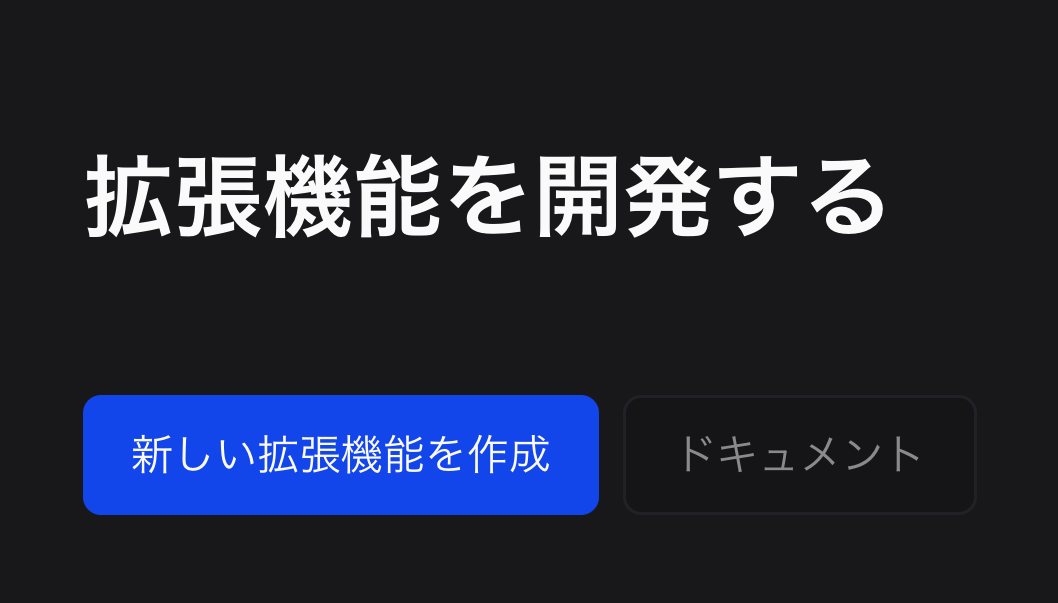
- Enter the package ID (in this case, YOUR_PROJECT)
- Click [Create]. ! Create Package
Creating a Release
-
Click [Create Release].
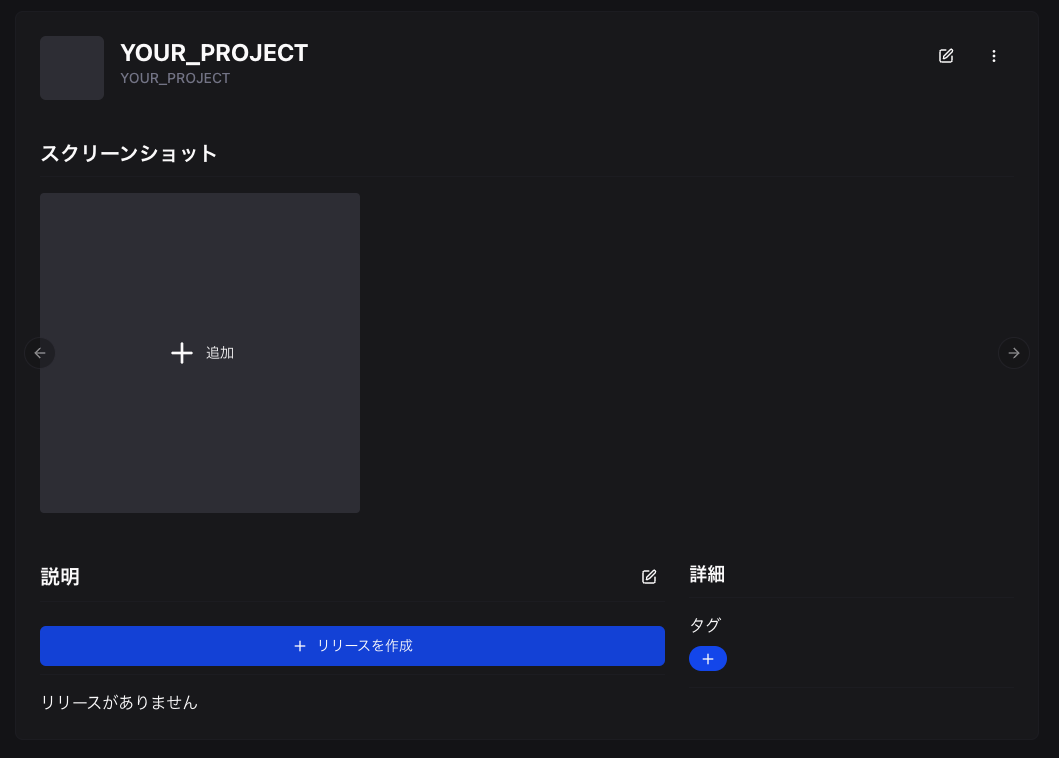
-
Enter the version.
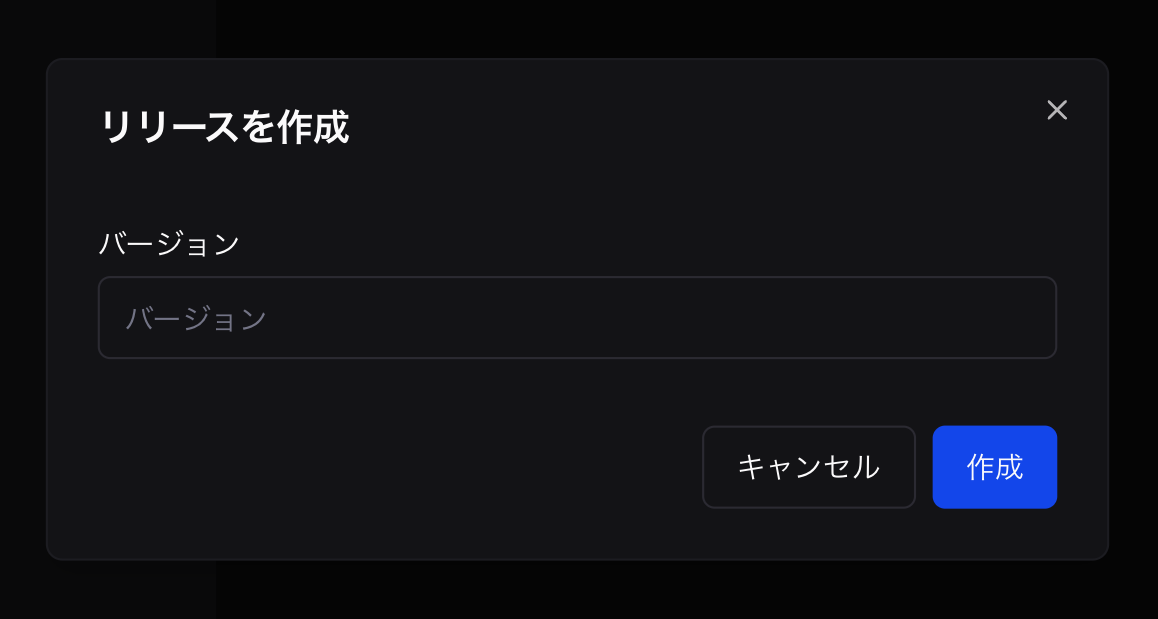
-
Click [Create].
-
The release will be created.
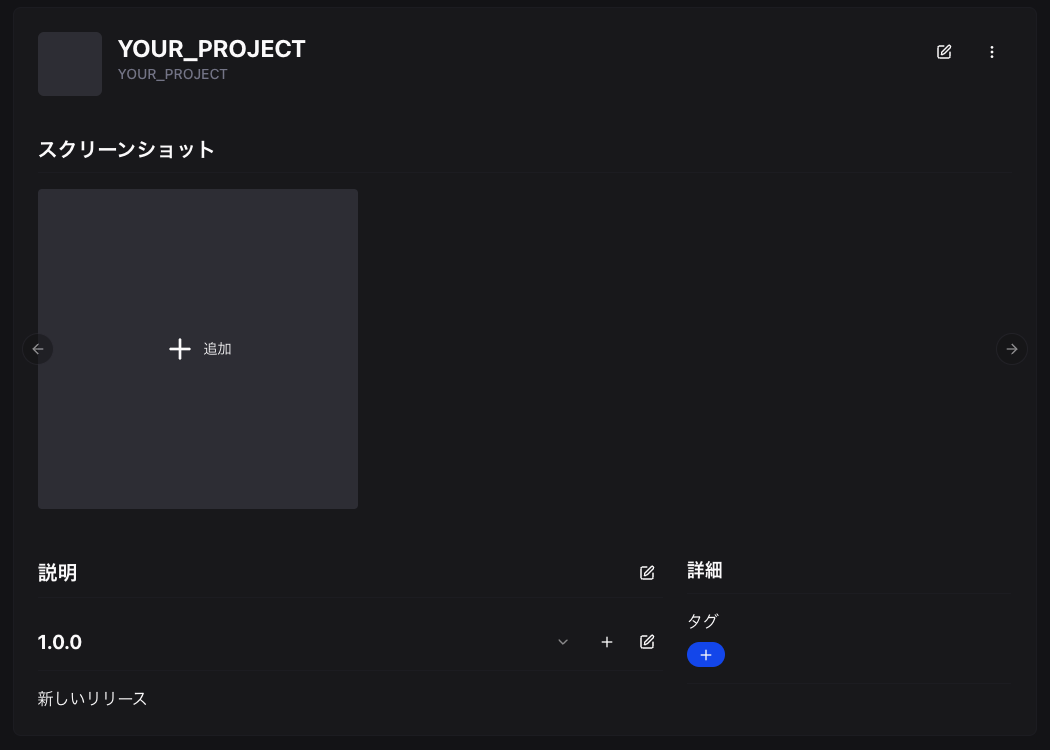
-
Click the edit button.
-
Click [Select File].
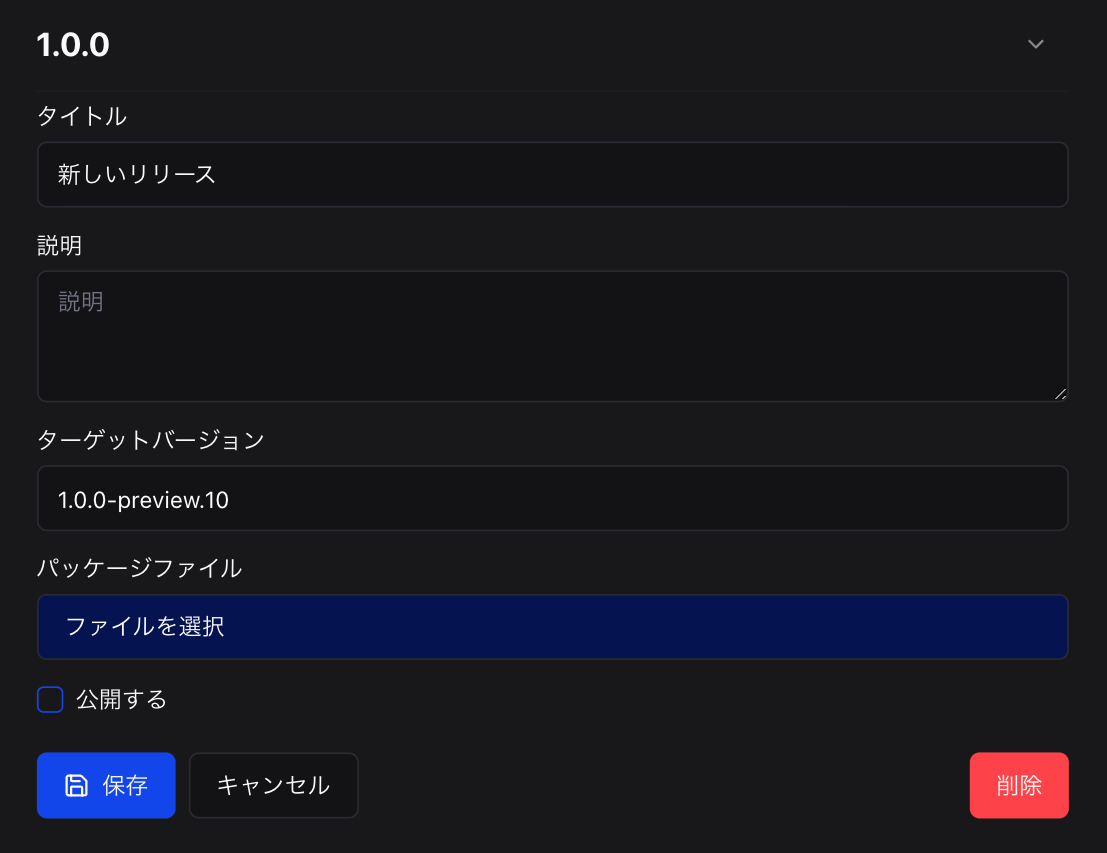
-
Select
YOUR_PROJECT.1.0.0.nupkg. -
Click [Publish]. (To make the package available for users to download, you need to change the package's publish settings)
-
Click [Save].
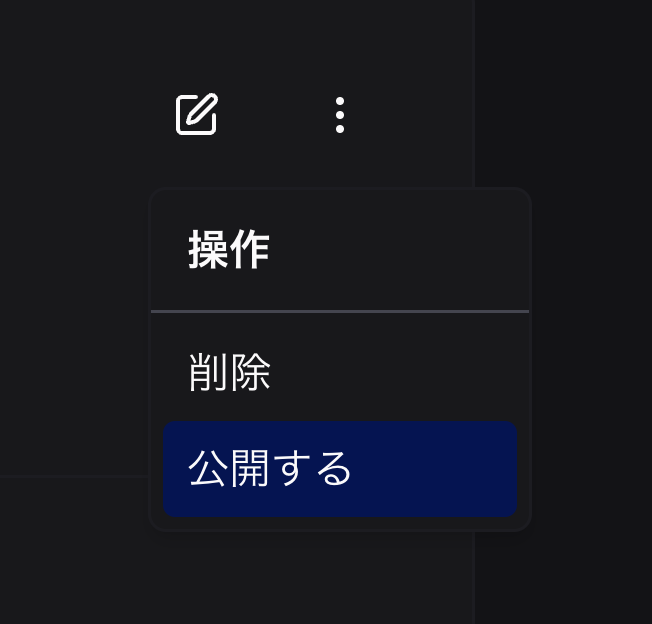
Publishing the Package
Click [Publish].
Target version and automatic updates
A release also has a Target version, the Beutl versions it runs on: a version such as 2.0.0-preview.14, which means that version and later, or a NuGet version range such as [2.0.0-preview.14, 2.0.0-preview.15). Beutl offers or installs a release only for a Beutl version that its target version includes.
Since preview.14, Beutl updates installed extensions from the store by itself unless the user chose otherwise: Settings → Extensions → Update timing is Always update automatically by default. Beutl then checks at startup and every six hours while it runs, downloads the newest release that fits, verifies it, and applies it before a project opens on the next launch. With With Beutl updates, it prepares the releases that fit a new version of Beutl when Beutl updates, and with Notify only, the user installs them. A release you publish therefore reaches most users without a click, so give it a target version that covers only the Beutl versions it works with.
Material and template packages
Place the materials you want to distribute in a top-level materials/ directory in the .nupkg, and object templates in templates/.
See Materials and Templates for the user workflow.