Creating a C# Project for Extensions
This article explains how to create an empty C# project for Beutl extensions.
This guide introduces the methods using Visual Studio Code or Visual Studio.
Beutl 2.0 ships an MSBuild SDK called Beutl.Extensibility.Sdk that wires up the target framework, language defaults, the standard package references (Beutl.Extensibility, Beutl.ProjectSystem, Beutl.NodeGraph, Beutl.Editor, Beutl.Engine.SourceGenerators), and the sideload output path. Using it keeps the csproj small.
Pick the SDK version that matches the Beutl release you target. The SDK and the Beutl runtime packages are versioned together (for example, 2.0.0-preview.7). You can override the resolved package versions with the BeutlPackagesVersion property if you need a different combination.
Visual Studio Code
- Use the terminal to create a class library.
dotnet new classlib -o MyBeutlExtension
Ensure the directory structure is as follows:
MyBeutlExtension
┣━ obj
┃  ┗━ (...)
┣━ Class1.cs
┗━ MyBeutlExtension.csproj
- Run the following commands to generate
nuget.configand add the package source. The Beutl SDK and runtime packages are distributed via thenuget.beditor.netfeed.
dotnet new nugetconfig
dotnet nuget add source "https://nuget.beditor.net/v3/index.json" --name nuget.beditor.net
- Edit the generated
MyBeutlExtension.csprojas follows:
<Project Sdk="Beutl.Extensibility.Sdk/2.0.0-preview.7">
  <PropertyGroup>
    <PackageId>MyBeutlExtension</PackageId>
    <Title>Sample Extension</Title>
    <Description>Sample</Description>
    <PackageTags>sample</PackageTags>
    <Version>1.0.0</Version>
    <Authors>Author Name</Authors>
    <RepositoryUrl>url/to/repository</RepositoryUrl>

    <!-- During Debug builds, copy the output to ~/.beutl/sideloads/<AssemblyName>
         so Beutl can pick the assembly up as a sideload extension. -->
    <DebugApplication Condition="'$(Configuration)'=='Debug'">true</DebugApplication>
  </PropertyGroup>
</Project>
The SDK takes care of:
- Setting
TargetFrameworktonet10.0, plusImplicitUsingsandNullabletoenable. - Adding
PackageReferences toBeutl.Extensibility,Beutl.ProjectSystem,Beutl.NodeGraph,Beutl.Editor, and theBeutl.Engine.SourceGeneratorsanalyzer. - Redirecting the output path to
~/.beutl/sideloads/<AssemblyName>whenDebugApplicationistrue.
This completes the creation of an empty C# project for extensions.
Customizing references
Set any of these properties to false if you want to opt out of a specific auto-reference:
BeutlAutoReferenceAllBeutlAutoReferenceExtensibilityBeutlAutoReferenceProjectSystemBeutlAutoReferenceNodeGraphBeutlAutoReferenceEditorBeutlAutoReferenceSourceGenerators
Visual Studio
-
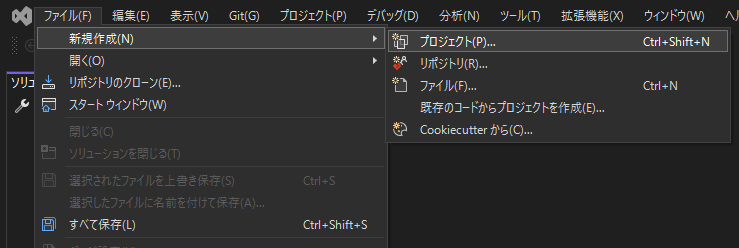
Open Visual Studio and click File > New > Project.
-
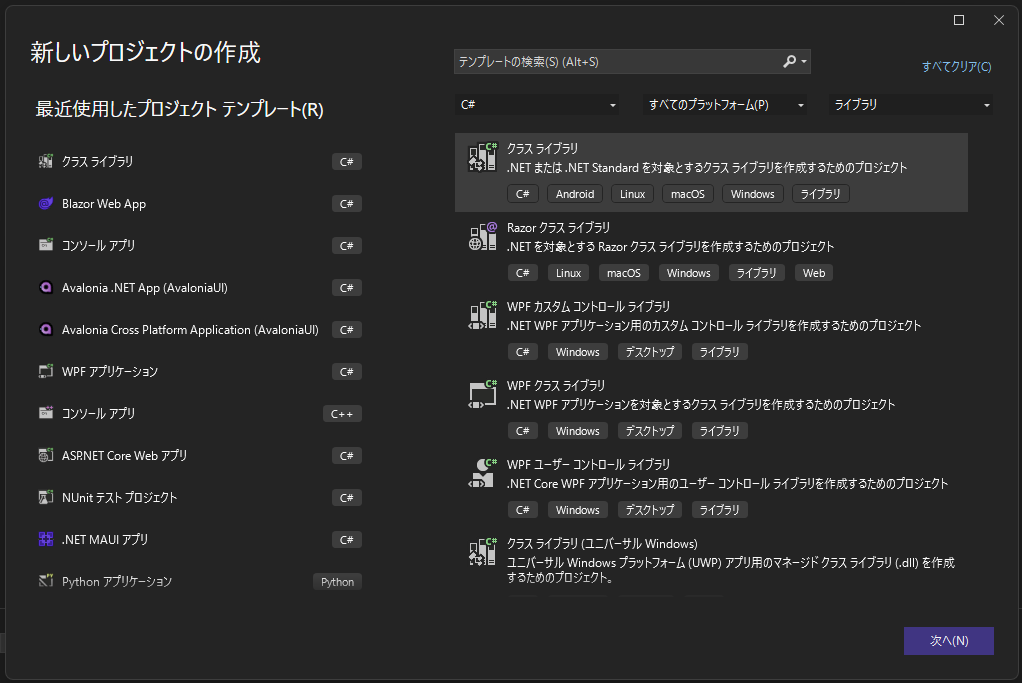
Select Class Library and click Next.
-
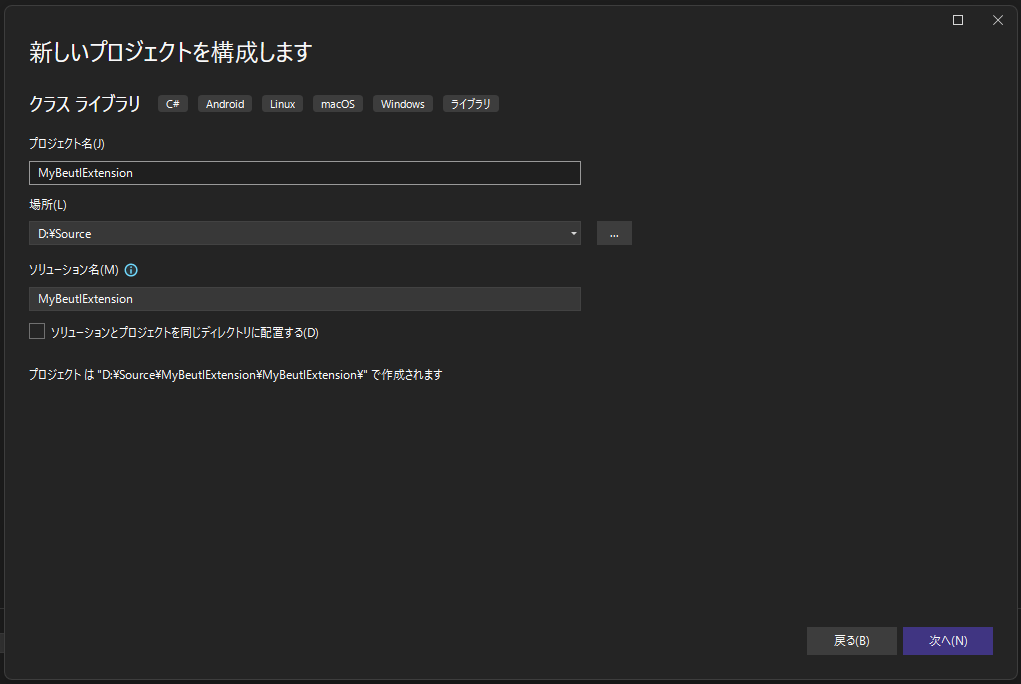
Enter the project name and location, then click Next.
-
Select
.NET 10.0as the framework. (TheBeutl.Extensibility.Sdkwill override this anyway, but pick a framework that matches the Beutl release you target so IntelliSense is correct from the start.) -
Click Create.
Ensure the directory structure is as follows:
MyBeutlExtension
┣━ MyBeutlExtension
┃  ┣━ obj
┃  ┃  ┗━ (...)
┃  ┣━ Class1.cs
┃  ┗━ MyBeutlExtension.csproj
┗━ MyBeutlExtension.sln
- Run the following commands to generate
nuget.configand add the package source.
dotnet new nugetconfig
dotnet nuget add source "https://nuget.beditor.net/v3/index.json" --name nuget.beditor.net
- Edit the generated
MyBeutlExtension.csprojas follows:
<Project Sdk="Beutl.Extensibility.Sdk/2.0.0-preview.7">
  <PropertyGroup>
    <PackageId>MyBeutlExtension</PackageId>
    <Title>Sample Extension</Title>
    <Description>Sample</Description>
    <PackageTags>sample</PackageTags>
    <Version>1.0.0</Version>
    <Authors>Author Name</Authors>
    <RepositoryUrl>url/to/repository</RepositoryUrl>

    <DebugApplication Condition="'$(Configuration)'=='Debug'">true</DebugApplication>
  </PropertyGroup>
</Project>
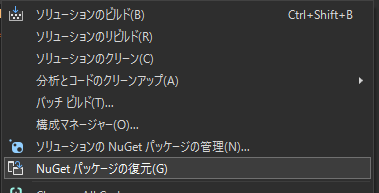
- Click Restore NuGet Packages to ensure that NuGet dependencies are restored correctly.
This completes the creation of an empty C# project for extensions.