FFmpeg Configuration
Before performing this operation, please review the FFmpeg license.
https://www.ffmpeg.org/legal.html
Manual Configuration
The files to be downloaded may change due to updates.
For Windows (64bit)
Download ffmpeg-n8.0-latest-win64-gpl-shared-8.0.zip from the following page:
https://github.com/BtbN/FFmpeg-Builds/releases
Extract the downloaded file and place the files from ffmpeg-n8.0-latest-win64-gpl-shared-8.0\bin\ as follows:
C:\Users\(your_username)\.beutl\ffmpeg
┣━ avcodec-62.dll
┣━ avdevice-62.dll
┣━ avfilter-11.dll
┣━ avformat-62.dll
┣━ avutil-60.dll
┣━ ffmpeg.exe
┣━ ffplay.exe
┣━ ffprobe.exe
┗━ swresample-6.dll
┗━ swscale-9.dll
For Linux
FFmpeg installed via package manager may not work correctly due to version differences. Therefore, follow the same steps as for Windows.
Download ffmpeg-n8.0-latest-linux64-gpl-shared-8.0.tar.xz from the following page:
https://github.com/BtbN/FFmpeg-Builds/releases
Extract the downloaded file and place the files from bin/ and lib/ as follows:
/home/(your_username)/.beutl/ffmpeg
┣━ ffmpeg
┣━ ffplay
┣━ ffprobe
┣━ libavcodec.so
┣━ libavcodec.so.62
┣━ libavdevice.so
┣━ libavdevice.so.62
┣━ libavfilter.so
┣━ libavfilter.so.11
┣━ libavformat.so
┣━ libavformat.so.62
┣━ libavutil.so
┣━ libavutil.so.60
┣━ libswresample.so
┣━ libswresample.so.6
┣━ libswscale.so
┣━ libswscale.so.9
┣━ libavcodec.so.62.x.xxx
┣━ libavdevice.so.62.x.xxx
┣━ libavfilter.so.11.x.xxx
┣━ libavformat.so.62.x.xxx
┣━ libavutil.so.60.x.xxx
┣━ libswresample.so.6.x.xxx
┗━ libswscale.so.9.x.xxx
The files with the suffix x.xxx are symbolic links.
For macOS
Do not use Rosetta.
Run the following command in the terminal to install Homebrew:
/bin/bash -c "$(curl -fsSL https://raw.githubusercontent.com/Homebrew/install/HEAD/install.sh)"
Then, run the following command to install FFmpeg:
brew install ffmpeg@8
In-App Configuration
Available from version 1.1.0.
If FFmpeg is not installed, a notification like the following will appear when you start Beutl.
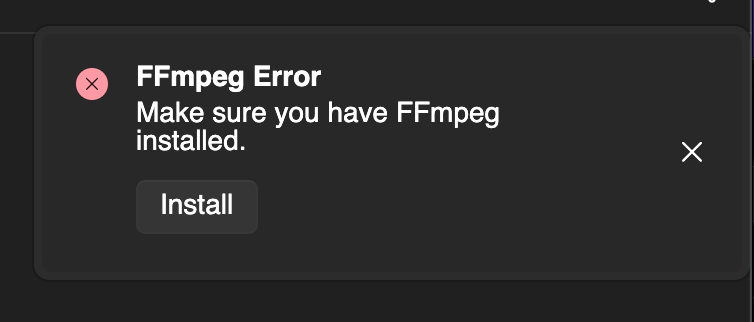
Clicking the Install button on this notification will launch the FFmpeg installation dialog.
In this dialog, you can install FFmpeg from BtbN/FFmpeg-Builds for Windows and Linux, and from Homebrew for macOS. If Homebrew is not installed, it will be installed automatically.
Using the FFmpeg Configuration Tool
This extension is planned to be deprecated.
From version 1.0.0-preview4 onwards, you can use the FFmpeg Configuration Tool.
You need a Beutl account to use this method.
Please sign in beforehand from the Account page in the Settings window.
- open the Tools > Extensions window
- click on "FFmpeg配置ツール".
- Click Install.
- Close Beutl.
- Follow the instructions in the installation dialog.
- Open Beutl.
- Open "FFmpeg配置ツール" from Tools.
- Click Install to start the installation of FFmpeg.
- After the installation is complete, restart Beutl to finish the configuration.
After completing this task, you can uninstall the "FFmpeg配置ツール" if you wish.
Troubleshooting
FFmpeg Version Issues
If the message "Please ensure FFmpeg is installed." appears even after installation, the FFmpeg version may be incorrect. Please check the correct version from the Version Mapping.
If you see the message despite using the FFmpeg Configuration Tool, please report it here.